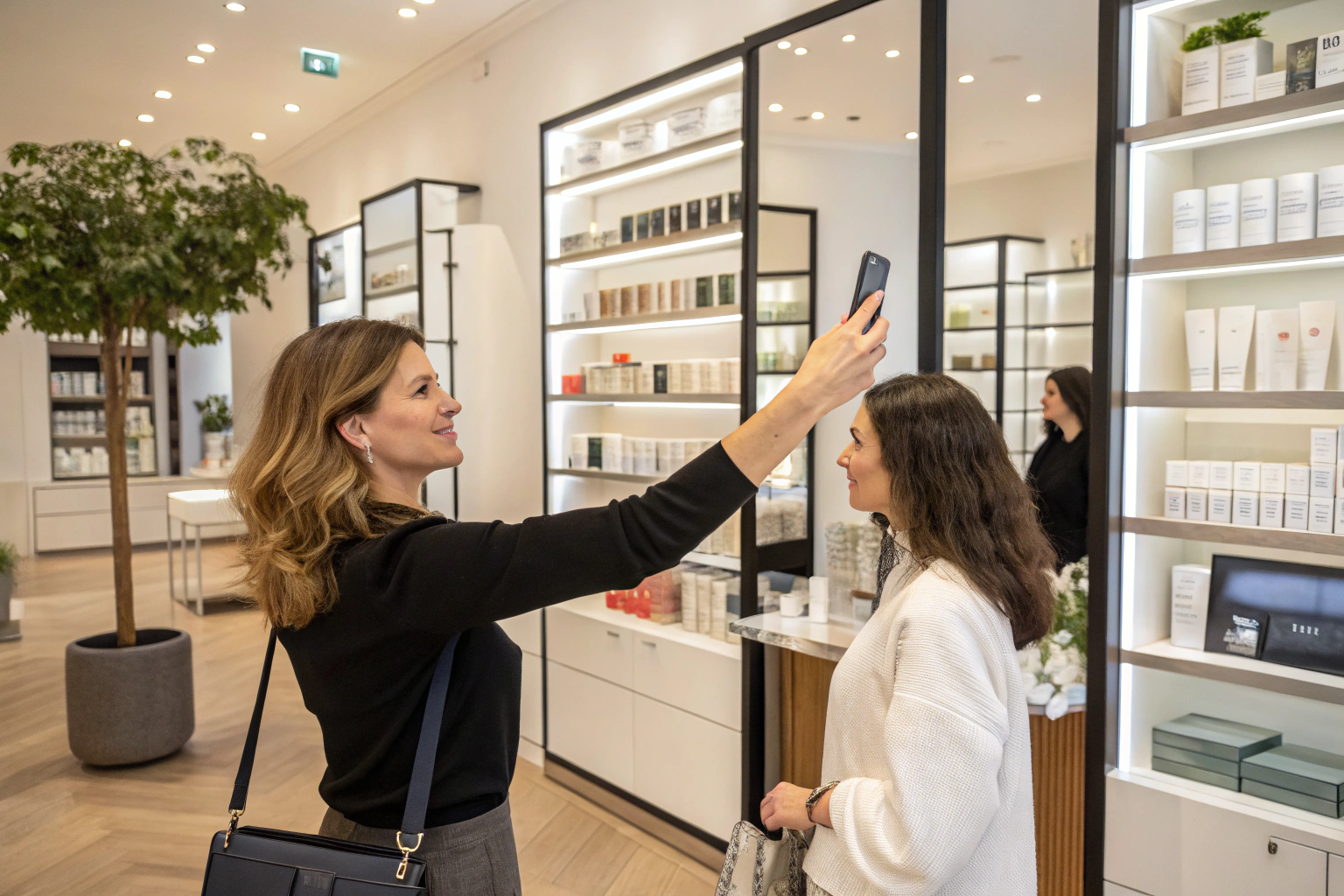
What the shopper gets in either mode is the same: one photo, a cosmetic analysis of visible concerns, result badges such as Skin Age, and products from your catalog. Not a medical diagnosis; does not replace a dermatologist. Placement only changes how people find it.
Key terms
- Core extension: the part that actually runs the scan. You pick Modal or Section, and nothing else in Face Age works on the storefront until one of them is live.
- Modal: an app embed. A round Face Age badge floats on every page, and tapping it opens the analyzer as a popup.
- Section: a theme section called Skin Analyzer that you add to a page in the theme editor.
- Storefront extensions: four optional theme blocks (Product Insight, Customer Recommended Products, Encouragement Banner, Customer Analysis History) that carry results into other parts of the store.
Modal vs Section: how do they differ?
| Modal (app embed) | Section (page block) | |
|---|---|---|
| Where it shows | Floating badge on every page | Inline on the page you add it to |
| How shoppers start | Tap the badge, popup opens full screen | Scroll to the section, start in place |
| Theme editor path | App embeds > Skin Analyzer Popup | Add section > Skin Analyzer |
| Looks like | Your badge image and color, position set separately for desktop and mobile | Part of the page, styled like your other sections |
| Best for | Getting the scan in front of people wherever they land | A dedicated "find your routine" moment on the homepage or a landing page |
| Watch out for | Clashing with chat widgets or cookie banners in the same corner | Placed too low, few people scroll to it |
Neither one is the "right" answer. They solve different problems. Modal is about reach: someone who lands on a serum product page from an ad still sees the badge. Section is about intent: you give the analyzer a headline, a short explanation and real space on the page.
When Modal mode makes more sense
I'd lean Modal if most of your traffic lands deep in the store, on product or collection pages, rather than the homepage. Paid social and Google Shopping traffic often skips the homepage entirely, so a homepage section would never be seen by those visitors.
Modal also suits stores whose theme is already crowded. You don't have to find room in a layout you spent months tuning. The badge sits on top of it.
The trade-off is that a floating button is easy to ignore. It doesn't explain itself. If you go with Modal, change the default badge to something that reads as "skin scan" to your shoppers (your own icon or a small face illustration works), and pick a corner that isn't already taken. A lot of stores have a chat bubble bottom right and a cookie bar along the bottom edge, so check the badge position on a real phone, not just the desktop preview. Face Age lets you set desktop and mobile positions separately in Customization > Template > Widget Modal.
When Section mode makes more sense
Section works well when your homepage does real work: returning customers, email traffic, people typing your URL. You can put a short headline above the analyzer, explain what happens with the photo, and let the scan be the main call to action for that part of the page.
It's also the better choice for a dedicated landing page. Create a page template for something like "Find your skincare routine", add the Skin Analyzer section, and send email and social traffic straight there. That gives you one clean URL to promote.
The risk with Section is placement. If it's the eighth block down, under a hero, two collection grids and a testimonial slider, most visitors won't reach it. Put it in the top half of the page or give it its own page.
Can you use both?
Display mode is one setting, but you're not locked into one experience. A common setup is Modal as the core extension, so the badge is everywhere, plus storefront blocks that show results on product pages and the homepage. You can also switch from Modal to Section, or back, at any time. Your quiz, connected products and customization stay as they are.
How do you publish a Shopify skin analyzer?
Finish the Initialize & Publish wizard in the app first. Face Age asks you to do this before touching templates or storefront extensions, and it saves a lot of confusion later.
To turn on Modal mode:
- In Shopify Admin, open Apps > Face Age > Publish and choose Modal.
- Click Add to theme, or go to Online Store > Themes > Customize yourself.
- Open App embeds in the left sidebar.
- Switch on Skin Analyzer Popup and click Save.
- Back in Face Age, go to Customization > Template > Widget Modal to upload your badge image, set the background color and set desktop and mobile positions.
To turn on Section mode:
- In Apps > Face Age > Publish, choose Section and click Add to theme.
- In the theme editor, open the template you want (the homepage is selected by default).
- Click Add section and pick Skin Analyzer.
- Move it up the page, adjust spacing like any other section, and Save.
Then take a scan yourself on mobile and desktop before you announce anything. You'll catch most layout issues in two minutes.
Which storefront blocks should you add after publishing?
Once the core extension is live, the Publish page offers four optional theme blocks. They don't replace Modal or Section. They sit on top of it and reuse the shopper's latest scan.
| Block | Where it goes | What it does |
|---|---|---|
| Product Insight | Product template only | Shows whether this product matches the shopper's scan, lists the concerns it targets, and offers Scan again |
| Customer Recommended Products | Homepage, collections, near results | Carousel of matched products with concern tags, price and Add to cart |
| Encouragement Banner | Homepage, collections | Invites guests to start a scan, or tells returning shoppers their routine is ready |
| Customer Analysis History | Account area or homepage | Shows a logged-in shopper's latest scores with a Scan again button |
To add one, go to Online Store > Themes > Customize, open the right template, click Add block, choose the Face Age app block, style it, and save. Each block follows your colors, fonts and button styles.
Two practical notes. Product Insight belongs on product pages only; Face Age doesn't make it available elsewhere because the "this matches you" message has to refer to the product on screen. And Customer Analysis History is built for logged-in shoppers, so pair it with Server API or Both storage in Analysis History. Our guide to skin analysis history on Shopify explains those storage modes.
What should you check before going live?
- The privacy policy. Your store's policy has to disclose that you use AI skin analysis. Face Age provides a template. By default the analyzer shows Face Age's own policy before a scan; you can swap in your store's link under Customization > Basic.
- Language. The analysis shows in your store's selected language, but quiz labels you wrote need manual translation.
- Camera setting. Upload only, camera only, or both. Both is the safer default, since some shoppers won't grant camera access.
- Product connections. Placement doesn't help if the recommendations are thin. Connect products to concerns and severity levels first. The recommendations feature page shows how matching works.
What if the analyzer doesn't show up?
This usually comes down to a handful of things. Check that the app embed is switched on and saved (it's easy to toggle and forget to save). Clear your browser cache or open the store in an incognito window. If you recently removed another quiz or scanner app, leftover code from it can throw JavaScript errors; open Chrome DevTools (Ctrl + Shift + J on Windows, Cmd + Option + J on Mac) and look for errors pointing at old app files. If you're still stuck, preview the store on Dawn: if it works there, the issue is in your theme. Face Age support is reachable through the in-app chat in your Shopify admin.
What does it cost?
Modal, Section and the four storefront blocks are part of the Face Age Shopify app on every plan, starting at $59 per month on Start. History-based blocks need history switched on, which comes with Plus ($129) and above. See pricing for the full plan list.
FAQ
What is the difference between Modal and Section mode? Modal is a floating button on every page that opens a popup. Section is an inline block on a page you choose.
Can I switch from Modal to Section later? Yes, any time. Your quiz, products and settings stay the same.
Where do I turn on the Skin Analyzer Popup? Online Store > Themes > Customize > App embeds, then switch on Skin Analyzer Popup and save.
Can I put the Product Insight block on the homepage? No. It only works on product templates.
Do the storefront blocks work without the core extension? No. Modal or Section must be live first.