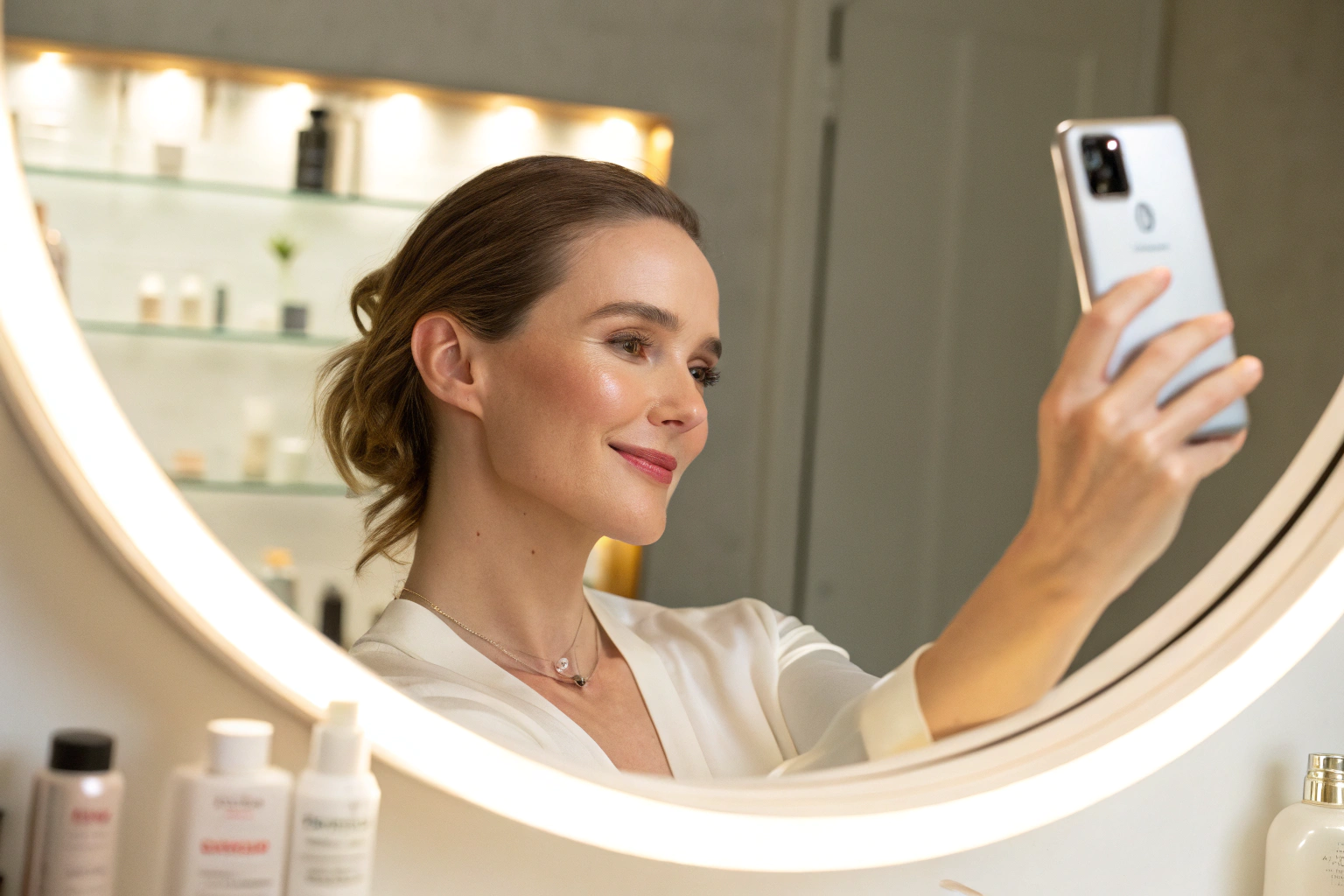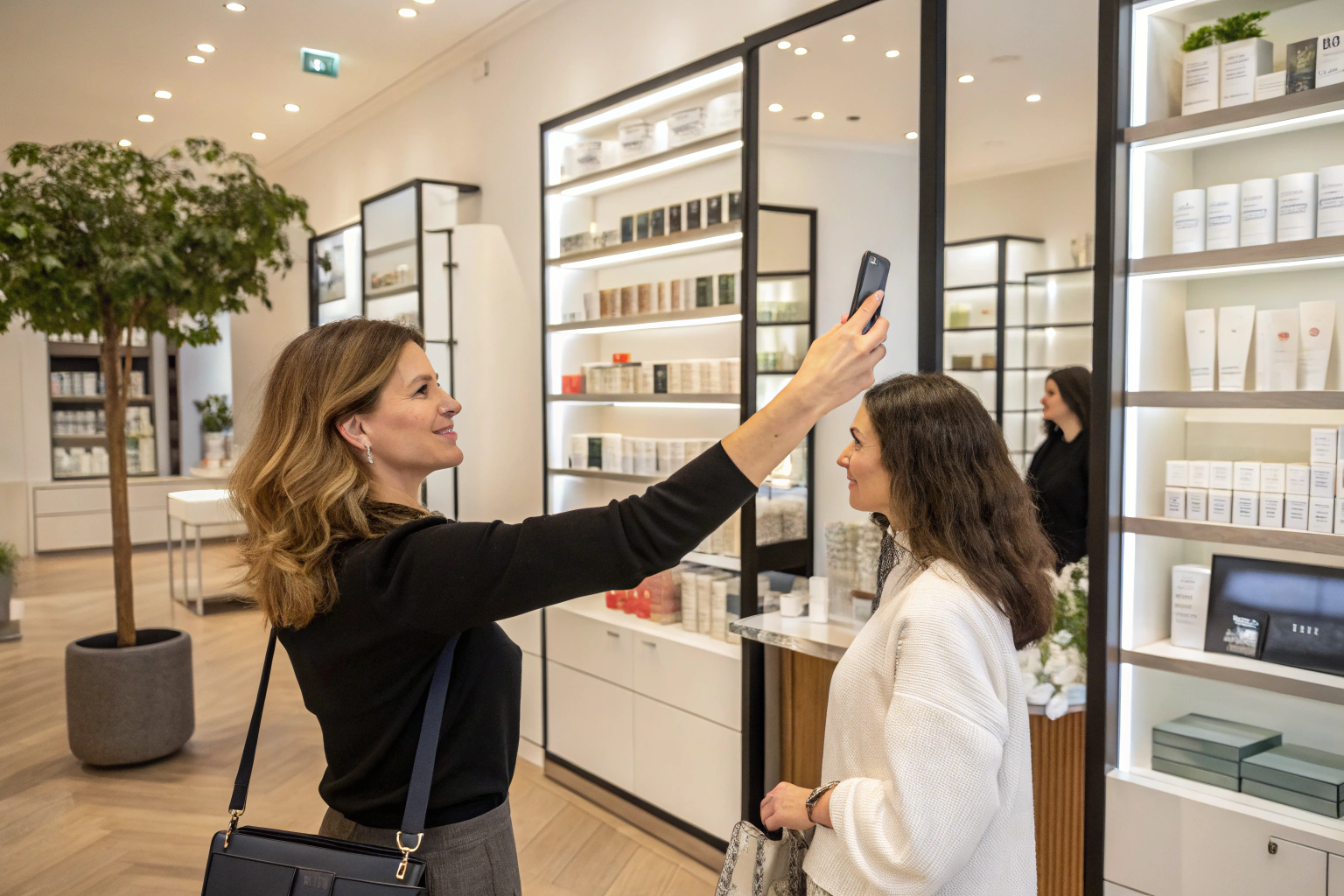

A quick note before we start: the Face Age scan analyzes visible skin concerns from a photo for shopping guidance. Not a medical diagnosis; does not replace a dermatologist.
Key terms
- Quiz Builder: the Face Age editor where you create quizzes from templates or from scratch.
- Section: one screen of the quiz, with its own title, background, box position and submit label.
- Element: a single block inside a section, such as a question, an image or an email field.
- Skin Analyzer section: the mandatory quiz step that opens the photo scan.
- Conditional hide logic: a rule that hides a section based on an earlier answer.
- Connected products: catalog items you have linked to concerns so they can be recommended.
Why pair a quiz with a skin scan?
A quiz and a scan answer different questions. A quiz collects things a photo cannot show: what a shopper already uses, what texture they like, whether they want a short or long routine, what they want to spend. A scan analyzes what the shopper may not know how to describe, across 13 concerns and 250+ attributes, with a Skin Age result.
Put together, they give your recommendation logic both kinds of input. The shopper also gets a sense of progress: a few easy questions, then a photo, then a result that reflects both. If you want the bigger picture of how that journey runs to the cart, read From Quiz to Checkout. This post sticks to the build.
Quiz-only vs scan-only vs quiz plus scan
| Approach | What it captures | What it misses | Best use |
|---|---|---|---|
| Quiz only | Preferences, habits, budget, self-reported skin type | Visible concerns the shopper does not name | Simple catalogs, gift finders |
| Scan only | Visible concerns, Skin Age, Skin Health | Preferences and constraints | Fast entry point from a floating button |
| Quiz plus scan | Both, in one flow | Takes a little longer to finish | Most skincare catalogs |
Step 1: Install Face Age and open Quiz Builder
Install Face Age from the Shopify App Store (see Face Age for Shopify). In Shopify Admin go to Apps > Face Age, then open Quiz Builder. You can start from a template, which gives you a ready structure you can edit, or choose Blank Quiz to build from nothing. If this is your first quiz, start with a template; it is quicker to delete what you do not need than to design every screen.
Step 2: Plan your sections before you add questions
Each section is one screen. A good skincare quiz usually has four to six:
- Welcome: a Title and a Paragraph that say what the shopper will get and roughly how long it takes.
- About you: one or two Select questions, for example skin feel during the day.
- Goals: a Multi Select for what the shopper wants to focus on.
- Preferences: routine length, texture, fragrance preferences.
- Skin Analyzer: the required scan step.
- Email (optional): an Email element so results and follow-ups can reach them.
For each section you can set a title, a background, the position of the content box, the submit button label and whether answers are required. Keep labels short and specific: "Next: your scan" tells a shopper more than "Continue".
Step 3: Choose the right element for each question
The builder offers seven element types:
| Element | Use it for | Tip |
|---|---|---|
| Title | Section headline | One idea per screen |
| Paragraph | Short context or reassurance | Two sentences at most |
| Text Box | Open answers | Use sparingly; it slows people down |
| Capturing an address | Say why you are asking | |
| Image | Visual cues, such as texture swatches | Add alt text |
| Select | One answer from a list | Best default for most questions |
| Multi Select | Several answers, such as goals | Cap the list at six to eight options |
Select and Multi Select keep the quiz fast and give you clean answers you can act on later.
Step 4: Add conditional logic
Conditional hide logic lets you skip sections that do not apply. For example, if a shopper says they want the shortest possible routine, you can hide a section that asks about extra steps. Rules of thumb:
- Hide, do not branch into long side paths. A quiz should feel the same length for everyone.
- Test each rule by taking the quiz yourself with different answers.
- Mark only the questions you really need as required.
Step 5: Keep the Skin Analyzer step, and set it up well
The Skin Analyzer section is mandatory in every Face Age quiz. This is where the shopper takes or uploads a photo. In Customization > Basic you can choose camera, upload or both, and add your privacy link. Your privacy policy must disclose AI skin analysis; Face Age provides a template.
Tell shoppers what to expect in the section text: good light, face the camera, no heavy filters. Results can include badges such as Skin Age, Skin Health and an Image Suitability Check, which you can switch in Customization > Template > Analysis result. Write the copy around the scan the same way the product works: it analyzes visible concerns. Not a medical diagnosis; does not replace a dermatologist.
Step 6: Connect products so results lead somewhere
A quiz without connected products ends in a dead end. In Connect products, link catalog items to concerns. You can set suitability by severity (low, medium, high), add conditions (Condition works as AND, Extra Condition as OR) and exclusions, which always win. You can add products manually or use Automate AI, which reads product names and descriptions, with a strictness level you choose. More on the recommendation side is on the recommendations feature page.
Step 7: Brand it and set the language
In Customization > Template, match colors, product cards and the badge to your theme, and add custom CSS if needed. In the Language tab, set the languages you sell in. The analysis appears in the store language; quiz labels you wrote yourself need manual translations, so add them before you launch in a new market.
Step 8: Publish and test
Use the Initialize & Publish wizard. Pick Modal (a floating button via App embeds > Skin Analyzer Popup) or Section (a block on a page such as your homepage). Then:
- Take the quiz on mobile and desktop.
- Try each conditional path.
- Check that recommended products are in stock and match the concerns you linked.
- Confirm the privacy link works.
If something does not load, the Face Age help center has a troubleshooting list for theme conflicts, app embeds and caching.
What to do after launch
Once the quiz is live, review answers and recommended products in the Analytics page and adjust questions that people skip or products that never show. When you are ready to bring shoppers back, the Plus plan adds scan history, two-scan comparison, PDF reports, the routine generator and Klaviyo or Mailchimp connections. See Skin Analysis History on Shopify and pricing.
Common mistakes
- Too many questions. Every extra screen is a reason to stop. Cut anything you will not use in recommendations or email.
- Medical wording. Do not promise to fix or cure anything. The quiz and scan help shoppers choose products.
- No email reason. If you ask for an email, say what they will receive.
- Unconnected catalog. Connect products before publishing, not after.
FAQ
How do I add a skincare quiz to my Shopify store? Install Face Age, open Apps > Face Age > Quiz Builder, start from a template or a Blank Quiz, add sections and publish as a Modal or a Section.
Which plan includes the quiz builder? Every Shopify plan, starting with Start at $59 per month, with a 7-day trial. See pricing.
Can a quiz include an AI skin scan? Yes. Every quiz has a Skin Analyzer section that opens the scan. Not a medical diagnosis; does not replace a dermatologist.
What question types can I use? Title, Paragraph, Text Box, Email, Image, Select and Multi Select.
Can I show the quiz in more than one language? Yes. The analysis shows in the store language; your own quiz labels are translated manually in the Language tab.
Ready to build one? Start on the quiz feature page.