That's the mechanics. The harder question is whether to offer one, and how to word it so it doesn't train people to wait for a code. I'll cover both.
Why a skin scan discount goes after the scan, not before
Most stores already run a discount pop-up on the homepage. It fires before the visitor knows what they want, so it's a coupon for nothing in particular.
After a scan, the situation is different. The shopper has just seen their own concerns named, and right below that is a short list of products chosen for those concerns. That's the moment they're deciding. A banner there is attached to a specific basket, not a vague "10% off your first order".
There's a second reason. The scan takes a minute and asks for a selfie. A small thank-you for doing that feels fair to most people, and it's a natural place to ask for an email too if you run the quiz with a lead step.
The analysis itself is a cosmetic reading of a photo: Not a medical diagnosis; does not replace a dermatologist. Keep your offer copy in that same tone. "15% off your routine" is fine. "Fix your acne for less" isn't.
How to set up the discount banner in Face Age
Here's the order I'd follow.
1. Create the code in Shopify first
The banner shows a code; it doesn't create one. In Shopify admin, go to Discounts and build the code you want: percentage or fixed amount, which products or collections it applies to, minimum order, usage limits and end date.
If the offer is meant for the routine, limit it to your skincare collection. That stops someone using a scan code on a gift card or an unrelated category.
2. Turn on the discount in the Face Age panel
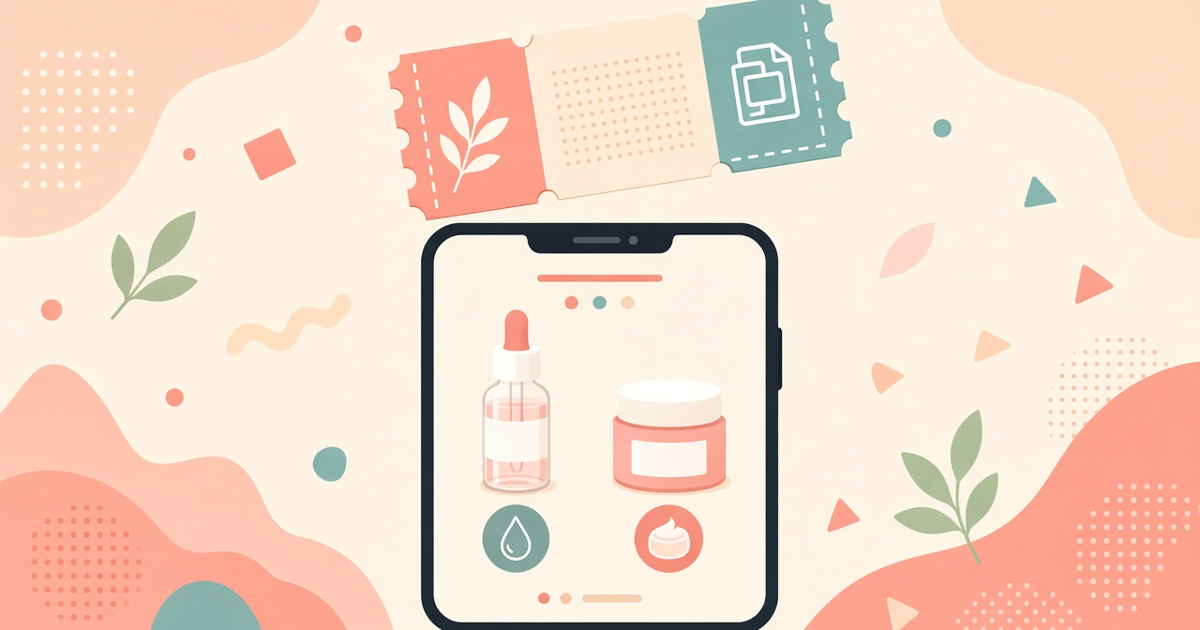
In the app's discount settings you'll find an Active switch, a title, a description and the code field. Write the title as the offer, plainly. "15% off your skincare routine" works. The description is one line on how to use it, like "Use this code at checkout on the products in your routine."
Paste the exact code from Shopify. Copy it rather than retyping it, since a typo here means a broken code at checkout and an annoyed customer.
3. Style it to match your theme
You can set the banner color, a background color or image, and turn the border on or off. Keep it readable on a phone. A busy background image behind the code text is the most common mistake I see.
4. Add an expiry if the offer is time-limited
There's an optional expiry date. Use it for seasonal campaigns, and set the same end date on the Shopify discount, so the banner and the code stop together. If they don't line up, you'll get shoppers copying a code that no longer works.
5. Check it in the scanner and the PDF
Run a scan yourself on mobile. The banner should appear on both the Products and Routine pages, the copy button should confirm with "Copied!", and if you're on a plan with the PDF report, the offer should be on its first page. That last part matters more than people think. The report is what shoppers save and open later, so the code goes home with them.
Turning the discount off removes it everywhere at once, which makes it easy to pause.
Writing an offer that doesn't cheapen the brand
A few patterns that work well in practice:
Tie it to the routine. "Save on your morning and night routine" gives the code a reason to exist. It also nudges people toward the full set of products rather than one cheap item.
Keep the number modest. You're rewarding a minute of effort, not running a clearance. If your margins are thin, a free gift or free shipping threshold can do the same job without discounting the products.
Say when it ends. If there's an expiry, put the date in the description. Vague urgency ("hurry!") reads like a gimmick. A real date reads like information.
Don't stack it with your site-wide pop-up. If a visitor already grabbed a welcome code, a second one after the scan confuses things. Some stores suppress the welcome pop-up on the page that hosts the scan.
When not to offer a discount at all
A skin scan discount isn't mandatory. Skip it if you're launching a new hero product at full price, if your brand never discounts, or if most scan traffic is already returning customers who'd buy anyway.
You can also run the scan with no banner for a few weeks, then switch it on and compare. Face Age's analytics show analyses, products added to cart after an analysis and the conversion rate for those products, so you can look at the before and after for your own store rather than relying on someone else's numbers. We explain each metric in skin analysis analytics.
Using the discount with email follow-up
If you collect emails in the quiz and send them to Klaviyo or Mailchimp, the code can do double duty. Show it in the banner, then repeat it in the first follow-up email for people who scanned but didn't buy. Same code, same end date, one consistent offer. Our guide to Klaviyo segments from skin analysis results covers how to build that audience.
The banner settings are covered on the discount banners feature page, and the PDF report placement is explained in what shoppers get in the skin analysis PDF report.
Common setup problems
"The code doesn't work at checkout." Usually the Shopify discount has a different spelling, has expired, or is limited to products that aren't in the cart. Check the discount's conditions against the products your routine recommends.
"The banner isn't showing." Check the Active switch and the expiry date. If the expiry has passed, the banner is hidden.
"It shows in English on my Arabic store." The title and description are translated with the scanner, but double-check your wording in each language you run. Literal translations of offer copy often read oddly.
FAQ
Where does the Face Age discount banner appear? Above the recommended products and the routine in the scanner, and on the first page of the PDF report.
Does the banner create the discount code in Shopify? No. Create the code under Discounts in Shopify first, then paste it into the banner settings.
Can I make the offer expire? Yes, with the optional expiry date. Match it to the end date on the Shopify discount.
Should every shopper who scans get a discount? Not necessarily. Try it with and without and look at your own analytics before deciding.