

Enabled by default. All analysis badges are on when you install Face Age. Change the settings below only if you want to hide specific badges.
Available badges
Skin Age
The customer’s estimated skin age, based on their facial image. Recommended for stores focused on anti-aging products.
Skin Health
An overall evaluation of the customer’s skin condition. Recommended for stores offering general skincare.
Image Suitability Check
Whether the photo meets the quality needed for an accurate analysis — helps customers see when lighting, angle or image quality may affect results.
Configure analysis badges
- Open your Shopify Admin.
- Go to Apps → Face Age.
- Open Customization.
- Select Template.
- Go to the Analysis result section.
- Enable or disable the badges you want to show.
- Click Save.
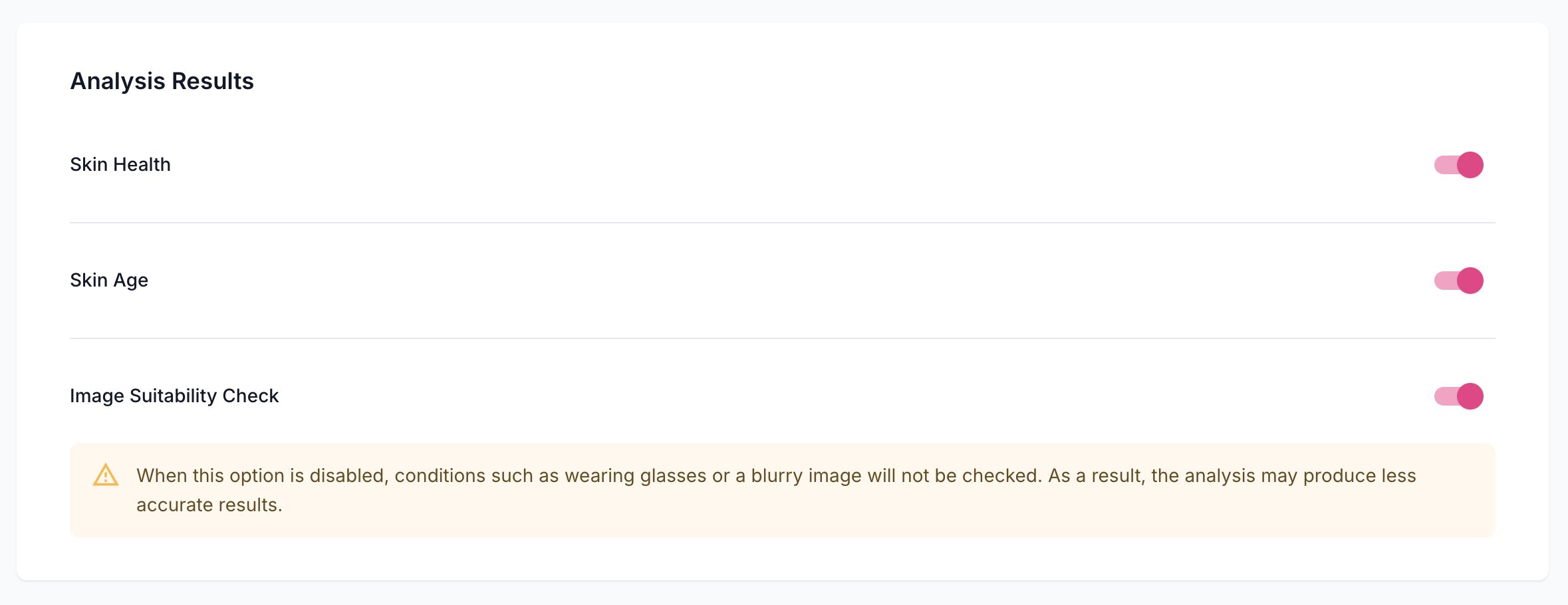
Where to find it
Recommended setup
Tips
- Fewer badges make a cleaner, simpler customer experience.
- If your products are mainly anti-aging, showing only Skin Age keeps customers focused on your main recommendation.
- Keeping Image Suitability Check on reduces inaccurate results from low-quality photos.