Basic
Configure the general settings of Face Age.Feature management
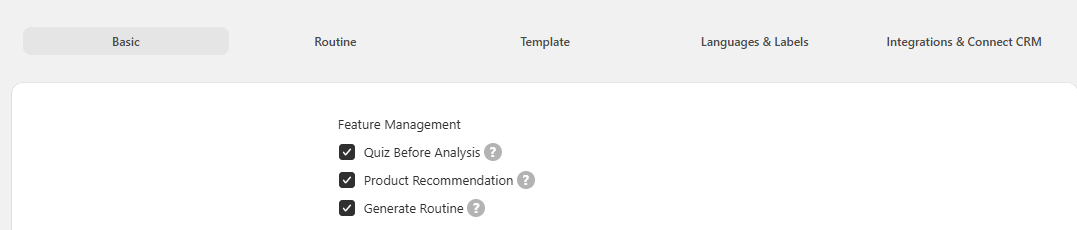
Control which features are active:- Whether the questions before the analysis are shown or skipped.
- Whether products are recommended after the analysis.
- Whether a routine is suggested after the analysis.
Product limitation
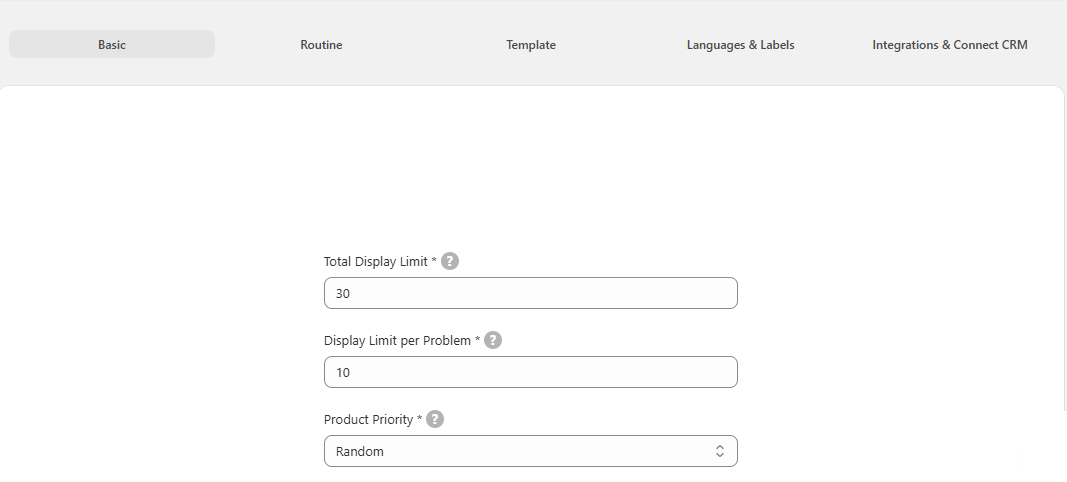
Control how many products are shown:- Total display limit — the maximum number of products recommended.
- Display limit per problem — the maximum number of products per skin concern.
- Product priority — how the final products are chosen.
Example
Example
You’ve connected 100 products in Connect Products. User A completes the analysis, and 70 of the 100 suit their skin, with 7 products per skin concern. You don’t want to show all 70.So you set:
- Total display limit = 10
- Display limit per problem = 1
- The newest product
- A product dedicated to fewer skin problems
- A general product connected to many skin problems
- Alphabetical order
- Most expensive or cheapest
- Random selection
Problem support
Enable or disable specific skin problems. For example, if your store only sells eye products and nothing for pigmentation, disable Pigmentation.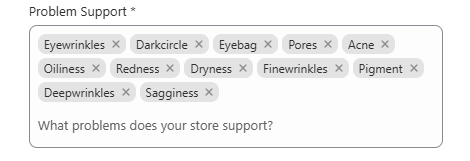
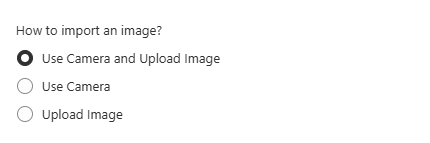
Camera usage
Choose how users provide their image:- Upload only
- Camera only
- Both — recommended, so users can choose
Privacy policy link
By default, Face Age shows its own privacy policy before the analysis. You can replace it with a link to your own privacy policy.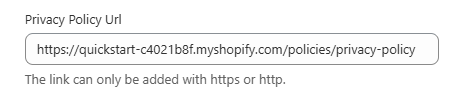
Click Save after making changes.
Routine
This tab has three sections: Banner, Discount code and Routine.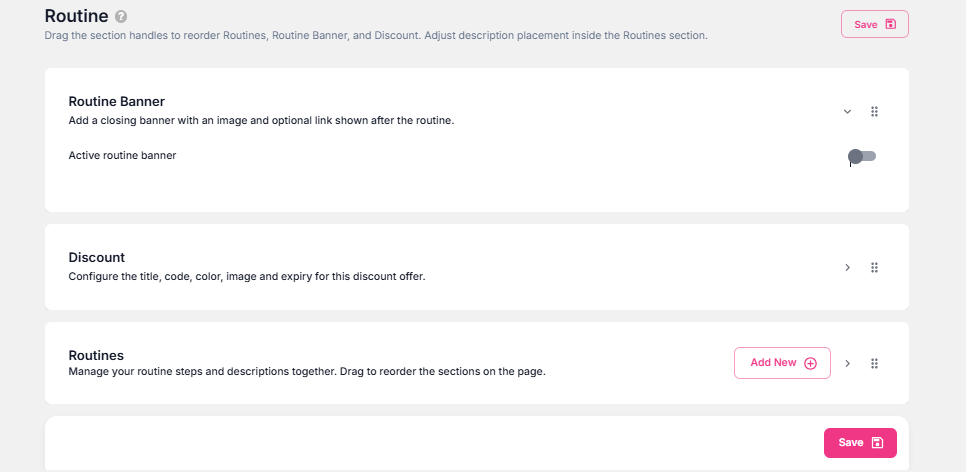
Banner
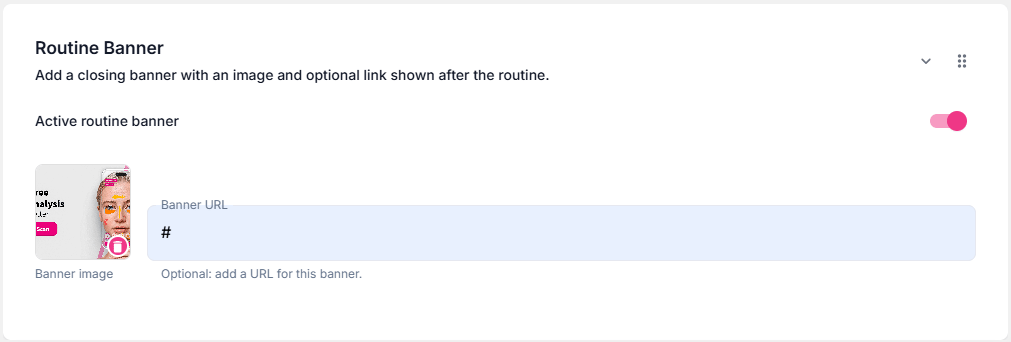
Upload an image and add a clickable URL. Drag and drop the banner to show it before or after the routine.- The banner image must be 16:4.
- If you don’t have a link, enter
#so the banner still appears. - To hide a banner, disable the section — there’s no need to delete the image.
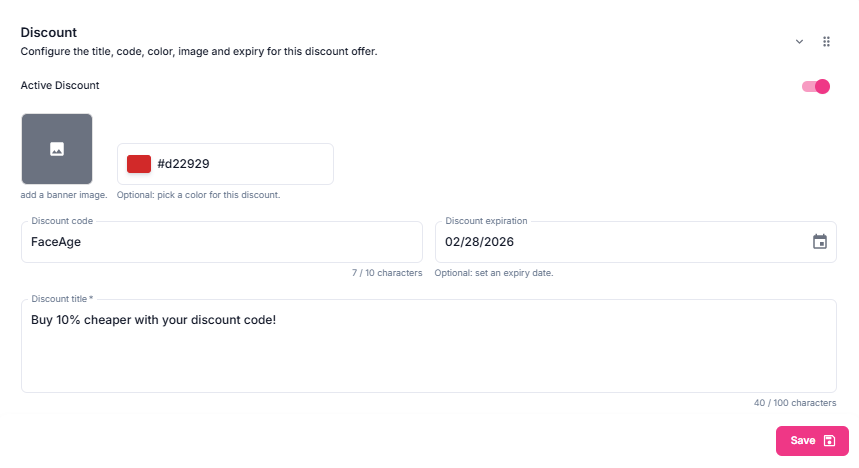
Discount code
This section can also be dragged, enabled and disabled.- Create a discount code in Shopify.
- Copy the code.
- Enable the section.
- Optionally, add a background banner.
- Choose a box color.
- Paste the discount code.
- Set an expiration date. This applies to the section, not to the Shopify code.
- Add a call-to-action sentence.
- Click Save.
Routine steps
Edit, delete, reorder or add routine steps.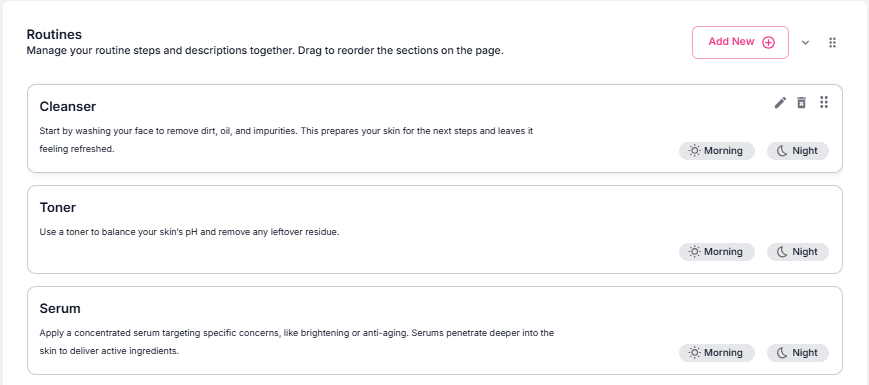
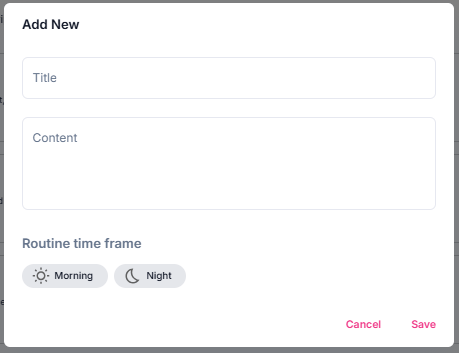
- Title — avoid “Step 1”, “Step 2” and so on. Step numbers are shown automatically, and a step with no matching product is removed, which would break your numbering. For example, if your toner is only for oily skin, a dry-skin user won’t see the toner step.
- Content (optional) — how to perform the step, or why it matters.
- Routine time frame — Morning, Night or Both. At least one must be selected.
Routine description
Add descriptions for the morning and night routines, and choose whether the text appears before or after the steps.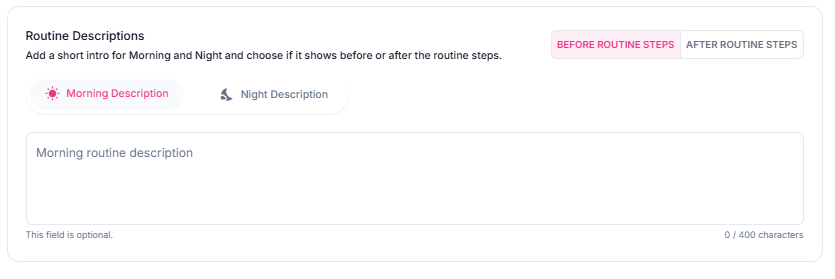
Click Save after making changes.
Template
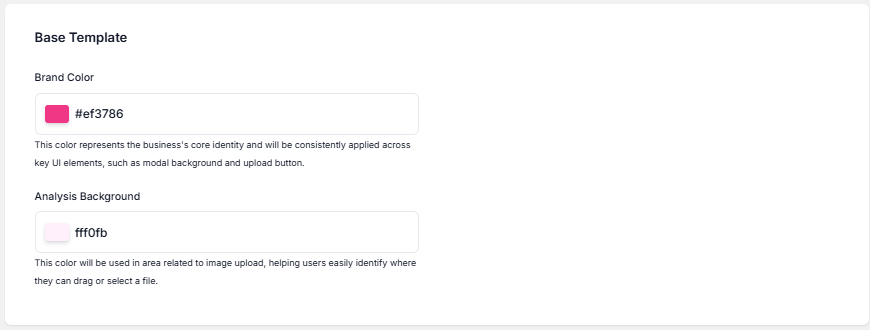
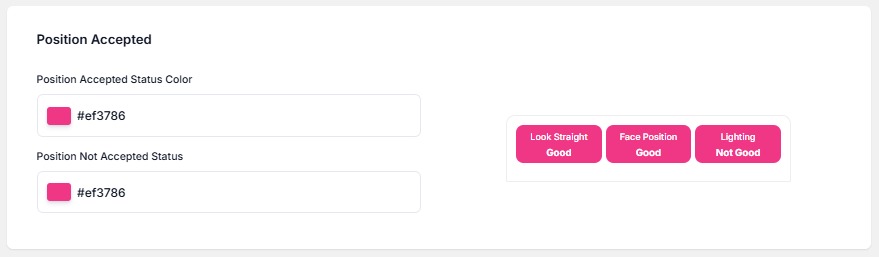
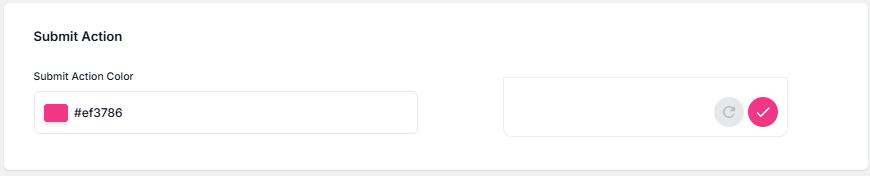
This tab controls how Face Age looks. Face Age inherits your website’s colors automatically, but you can customize everything manually.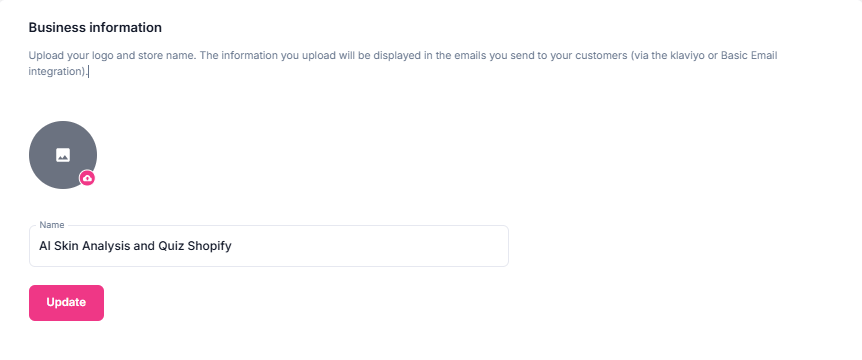
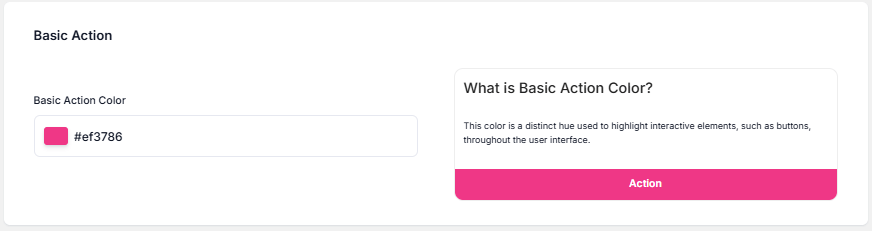
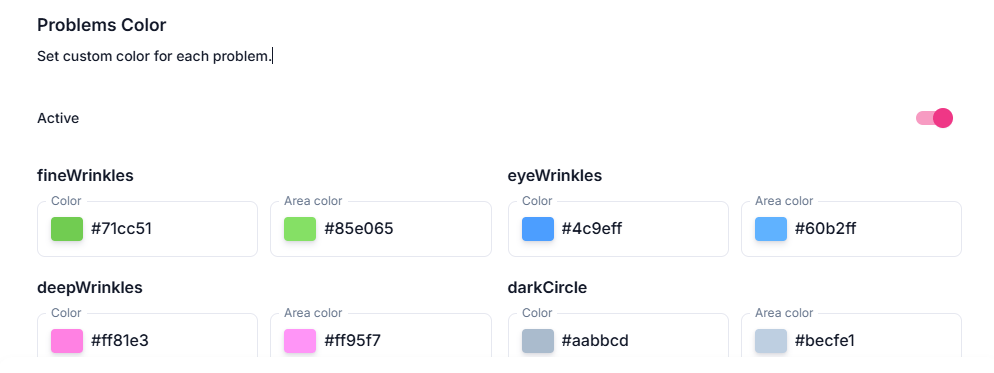
Product card
Presets — choose a predefined product card layout and preview it.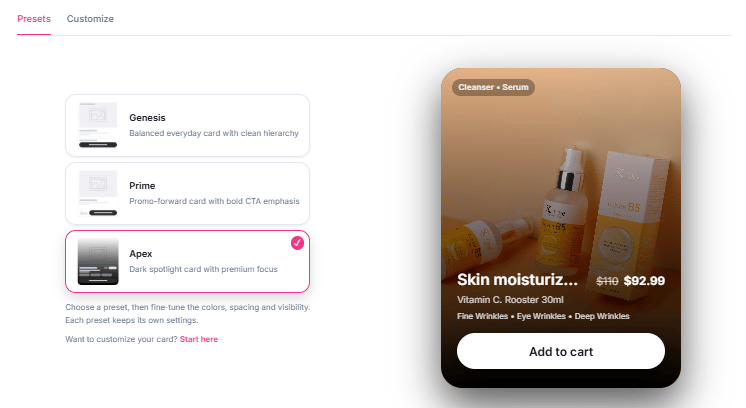
-
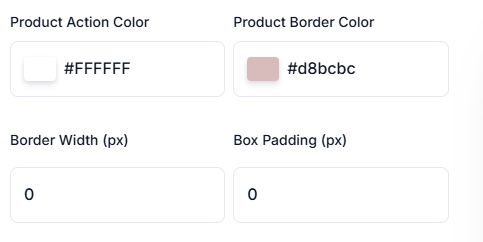
Product action color, border color, border width and box padding
-
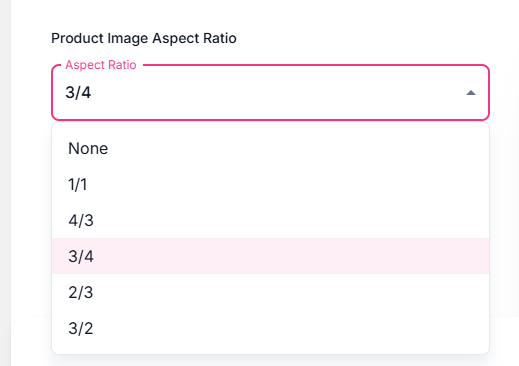
Product image aspect ratio. If your product images have different sizes, set a fixed ratio to avoid layout issues.
-
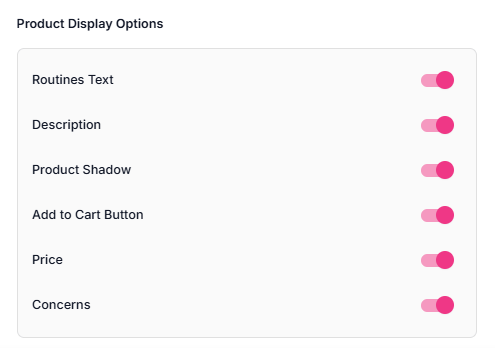
Product display options — which elements appear on the card
Widget modal
In modal mode, a circular Face Age badge appears on your site. Upload your own logo or image, choose a background color, and set the badge position separately for desktop and mobile.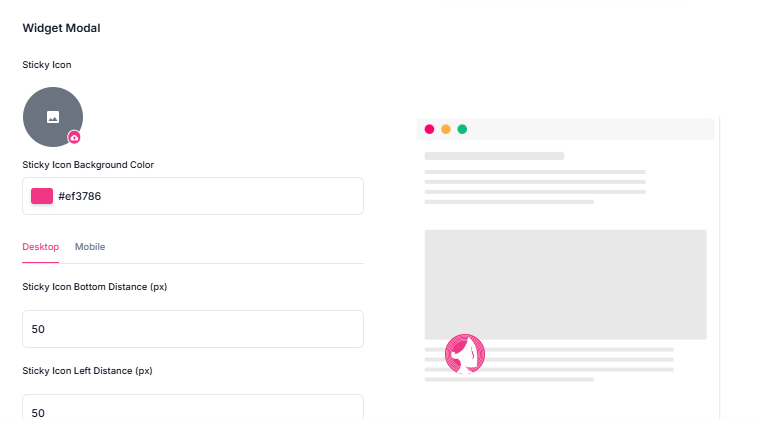
Discount code and custom CSS
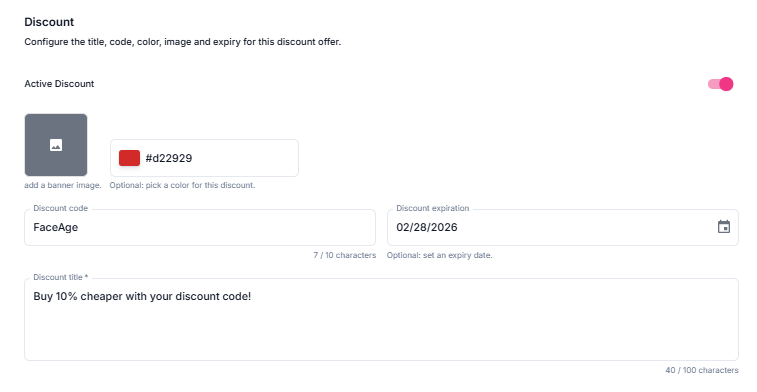

Click Update to save changes.
Language
Face Age automatically matches your website’s language. Use this tab when you have a multilingual website, need a custom translation, or want your own labels.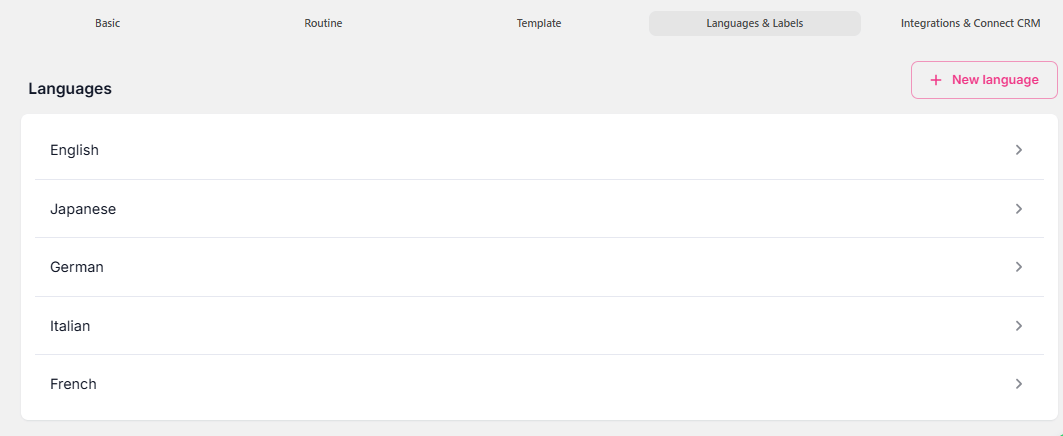
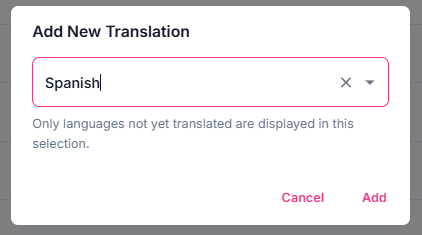

Analysis labels
All labels of the face analyzer. They’re translated automatically — to change one, type your translation in the box next to it.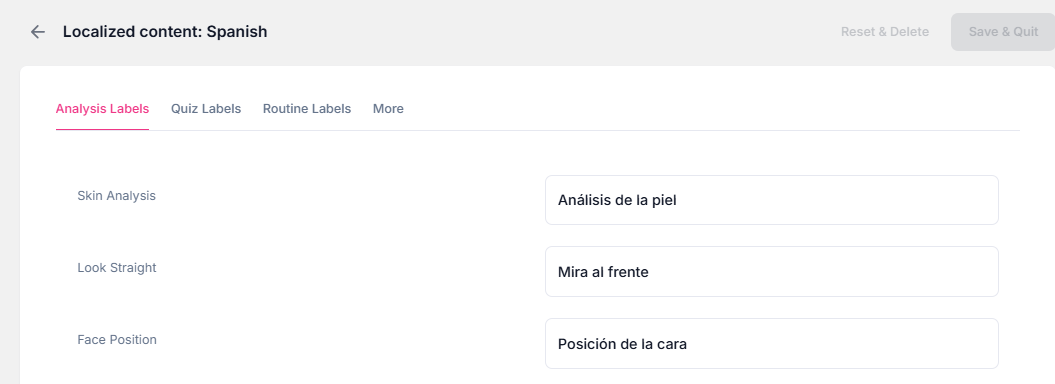
Quiz labels
These are not translated automatically. All your questions and options are listed so you can enter translations manually. That’s why we recommend writing your questions in the target language from the start. After you add a language, changes to your questions are reflected here: a deleted option’s label is removed, and a new option’s label appears.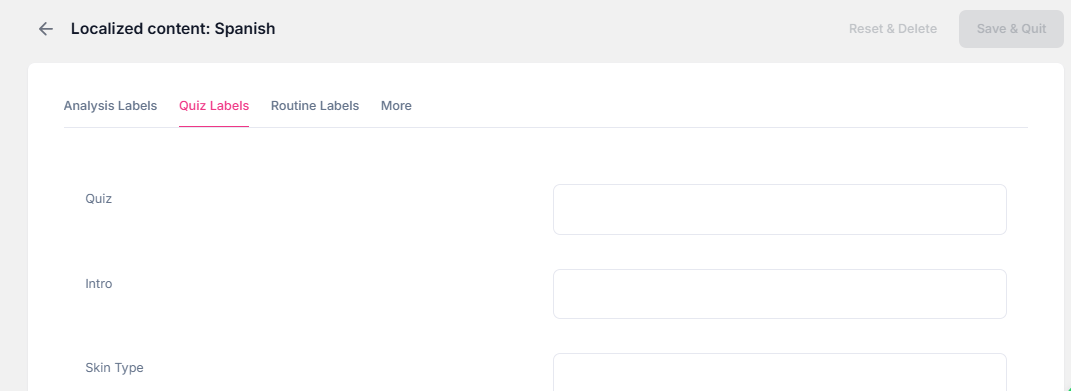
Routine labels
Labels for the default routine steps, translated automatically. If you add a step or rename one, its label isn’t translated automatically, but it appears here so you can add your translation.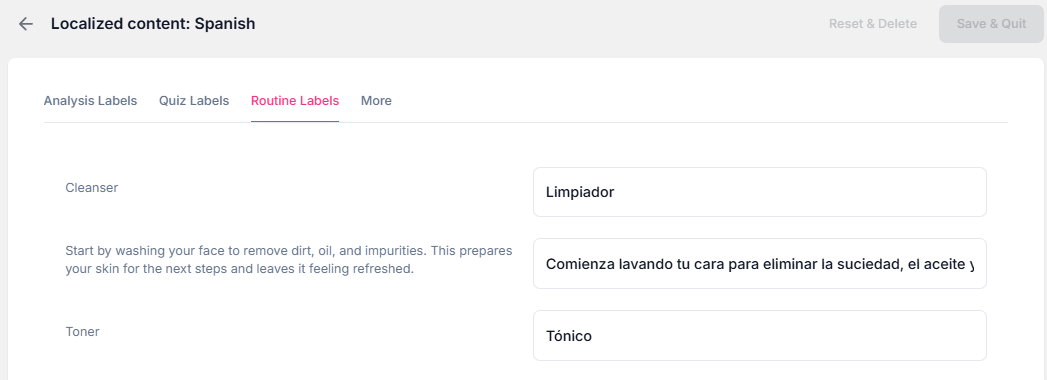
More
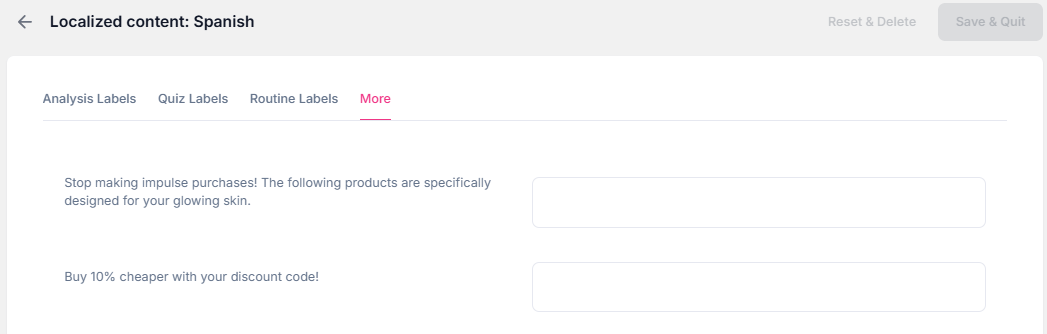
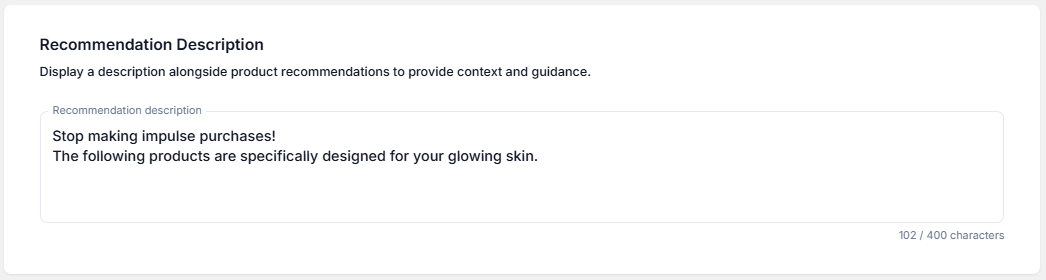
Labels for the routine description, recommendation description and discount description.