

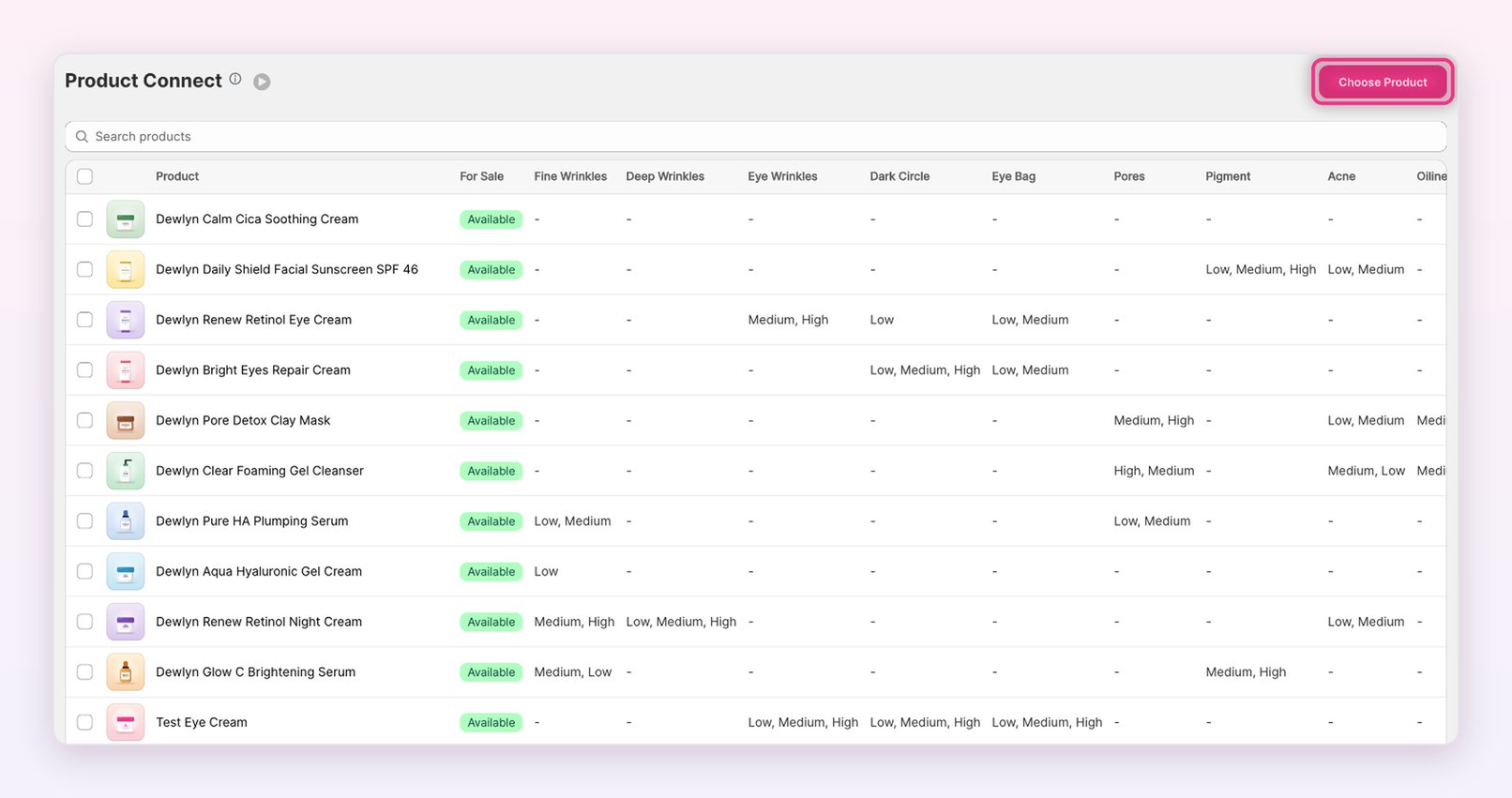
- Product list — select products from your Shopify store to connect them with Face Age.
- Search and manage — find products quickly in large catalogs with search and pagination.
- Assign routines — put products in morning or night routines, for example under-eye cream for night. Leave blank if not applicable.
- Set problem suitability — choose which problems and severity levels a product addresses, for example a lightening cream for medium dark circles. To target all users, select all levels (low, medium, high).
- Add extra conditions — extra rules for recommendations, for example exclude exfoliants for sensitive skin.
- Rules in Condition use AND logic.
- Rules in Extra condition use OR logic.
- Exclusions take priority over inclusions.
Search and manage products
The Connect Products page has search and pagination so you can work faster in large catalogs:- Search bar — find products without scrolling through your catalog.
- Server-side pagination — faster loading for large catalogs.
- Better navigation — easier management when you have hundreds of SKUs.
Add products with AI
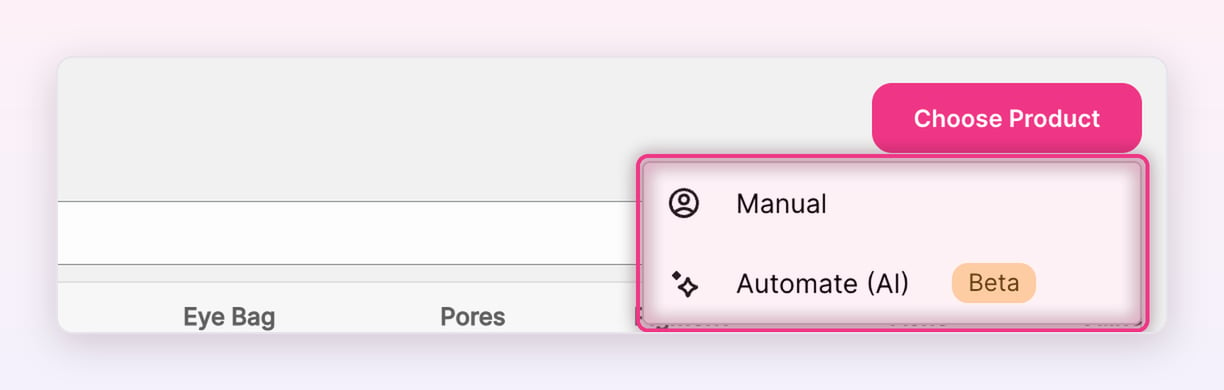
Adding products with AI is fast and accurate, and ideal for the initial setup. Click Automate AI.1
Choose the strictness
Set how strict the AI should be. At high, the AI makes no guesses about a product and acts completely strictly — your products are linked to fewer skin problems, but with high accuracy. Medium and low are also available.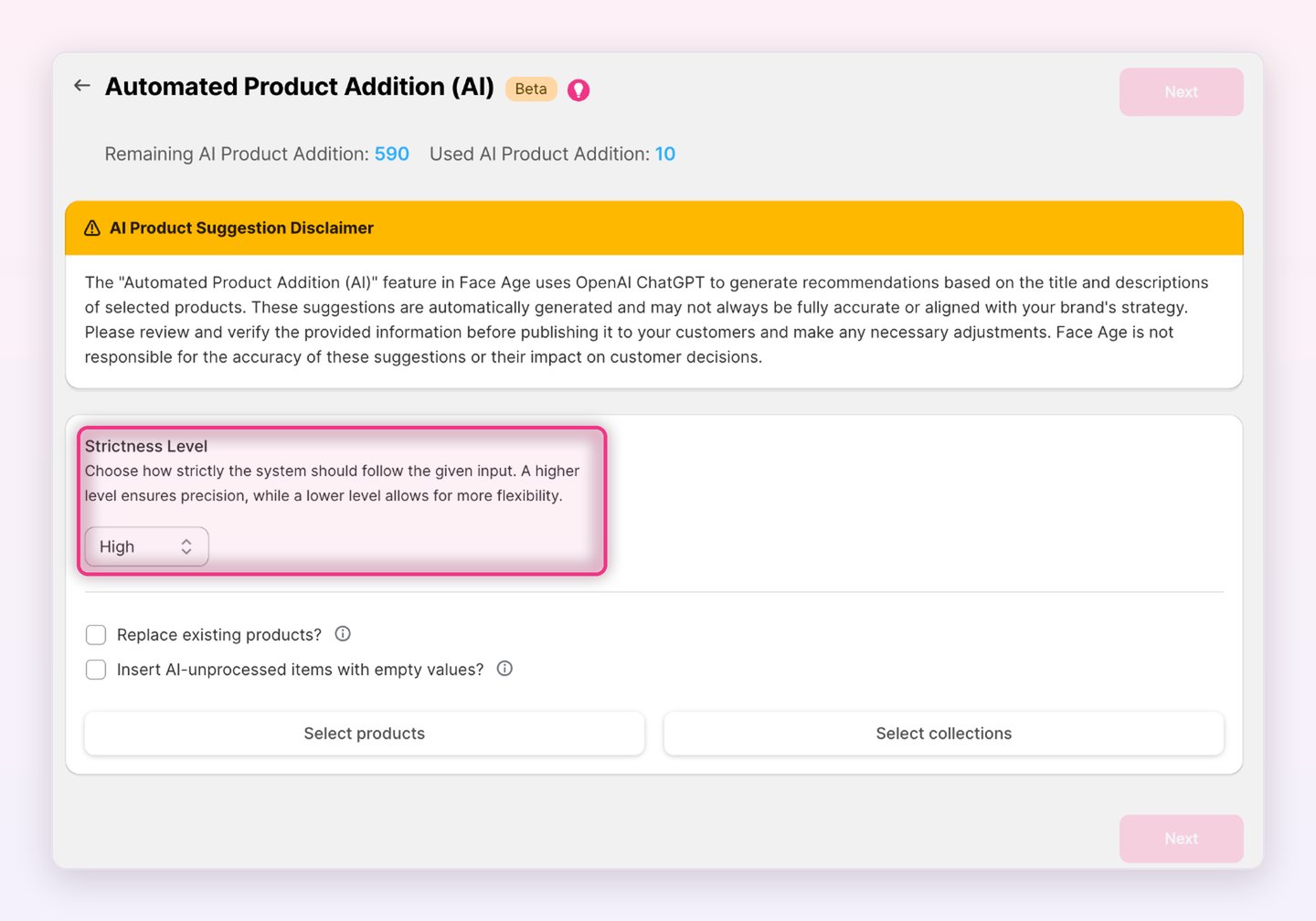
2
Replace or add
Choose whether these products replace or are added to products you connected before. If this is your first time and you haven’t added any products, leave both unchecked. Use the first option to replace, the second to add. You can edit every added product at any time.
3
Select products
Select the products to add with AI — from the product list on the left or from your collections on the right — using the checkbox next to each item.Click Next.
4
Review
Click Next, then Show Products.You’re taken to the products page. Click any product title to edit it — the steps are the same as adding products manually.
Add products manually
If you choose Manual, you’ll see 4 boxes.Product list
Click the button to see all products in your Shopify store. Select one or more products to connect them to Face Age.Product routine
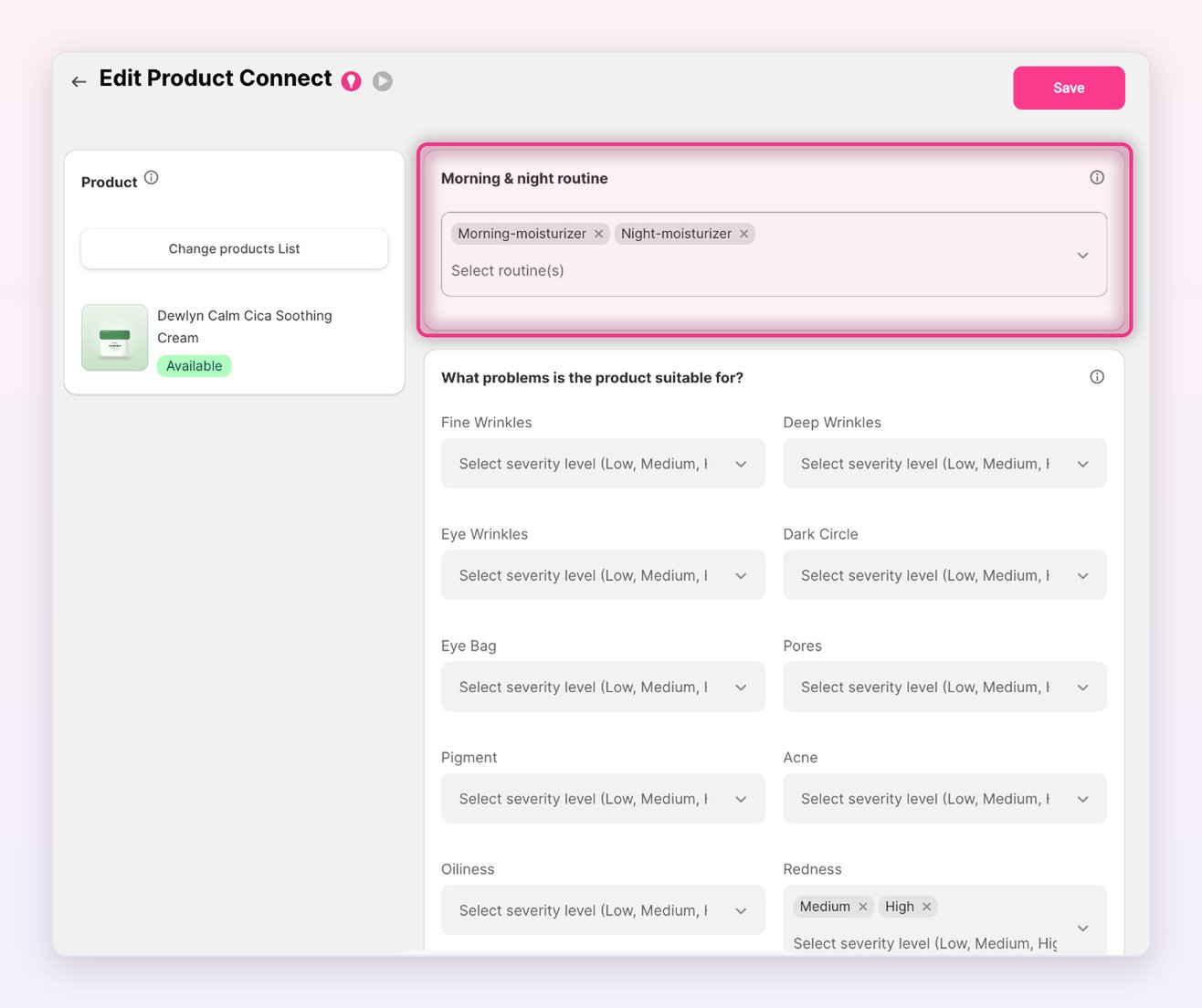
If the product doesn’t fit the morning or night routine, leave this empty. The product won’t appear in the routine section.
Condition
Choose which problems the product is suitable for, and to what degree. For example, for an under-eye lightening cream suited to moderate dark circles, select Medium in the Dark Circle box. The product is then recommended to people with medium dark circles in their analysis.To recommend a product to everyone, fill in all fields and select every level: low, medium and high.
Extra condition
Set conditions under which a product can or can’t be recommended, based on the questions in your quiz. For example, use Exclude so an exfoliant isn’t recommended to people with sensitive skin, or Include to require a condition for a product.Conditions in the Condition box use AND logic; conditions in Extra condition use OR logic. Recommendation priority is: exclude, then include, then analysis.