

- Initialize & Publish — finish the setup wizard before customizing templates or storefront extensions.
- Display modes:
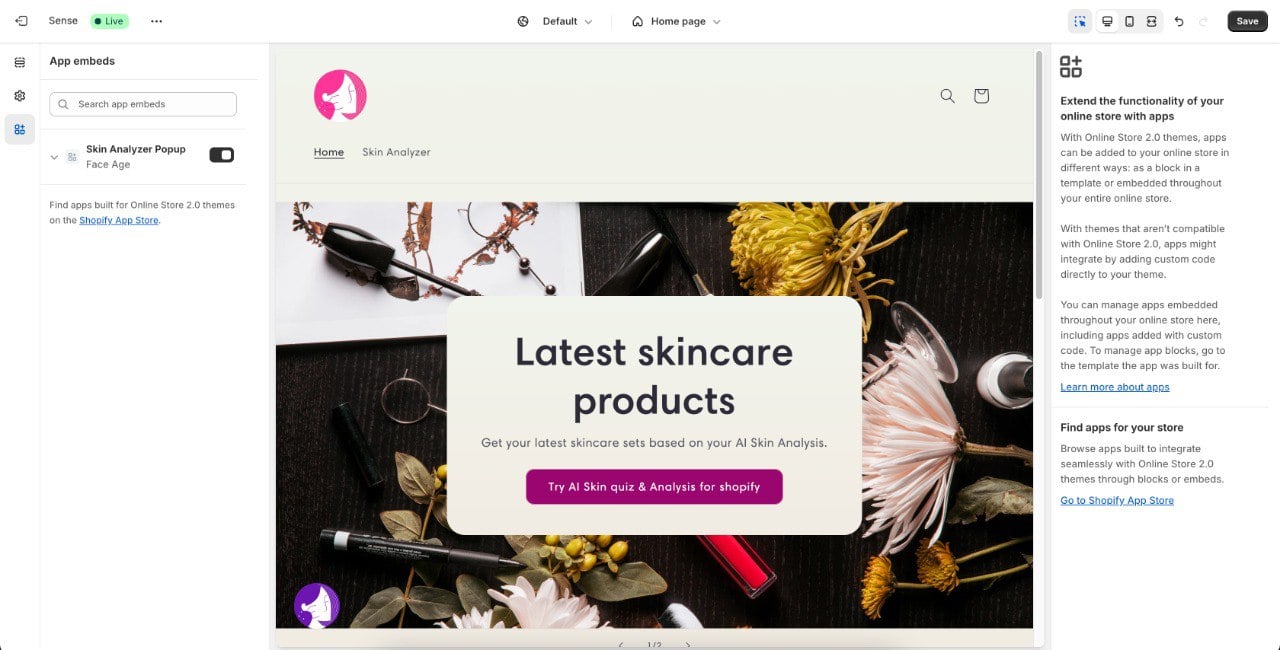
- Modal — adds a Face Age badge to all pages. Activate it in Online Store → Themes → Customize → App embeds → Skin Analyzer Popup.
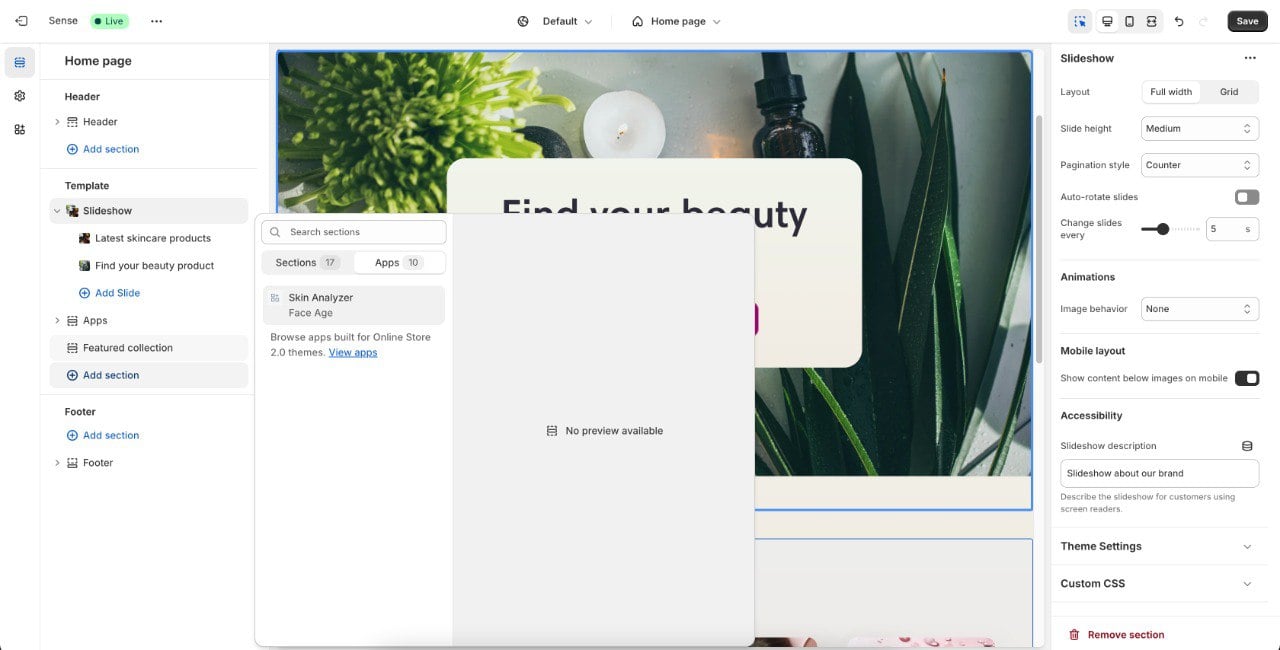
- Section — adds the Face Age analyzer to your homepage as a section. Activate it in Online Store → Themes → Customize → Add section → Skin Analyzer.
- You can switch between display modes at any time.
- Storefront extensions — optional theme blocks you can add after publishing.
Initialize & Publish
The Initialize & Publish workflow walks you through going live, with clear guidance at each step and a simplified publishing process.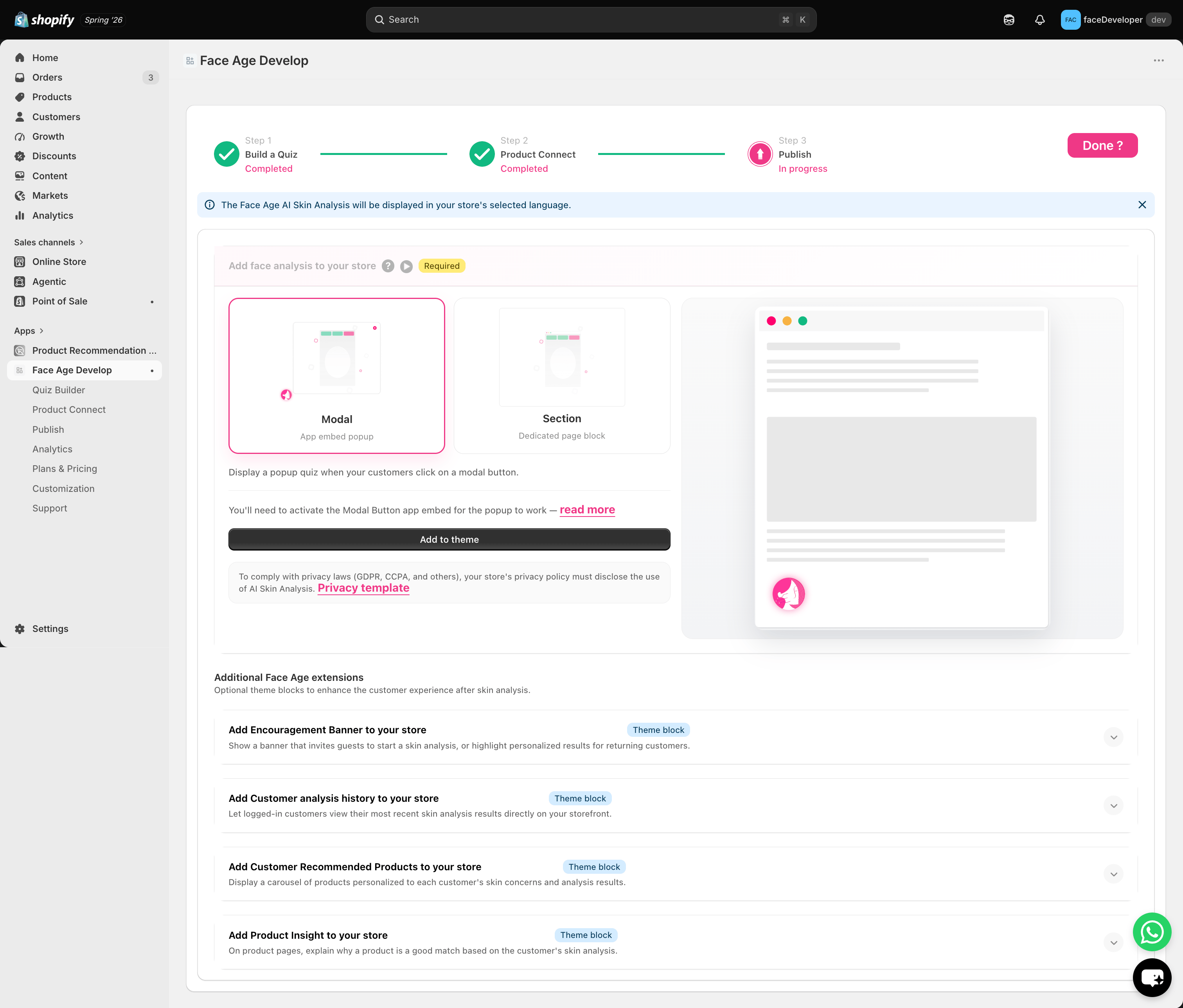
Display modes
In the publish section, choose how Face Age appears on your website: Modal or Section.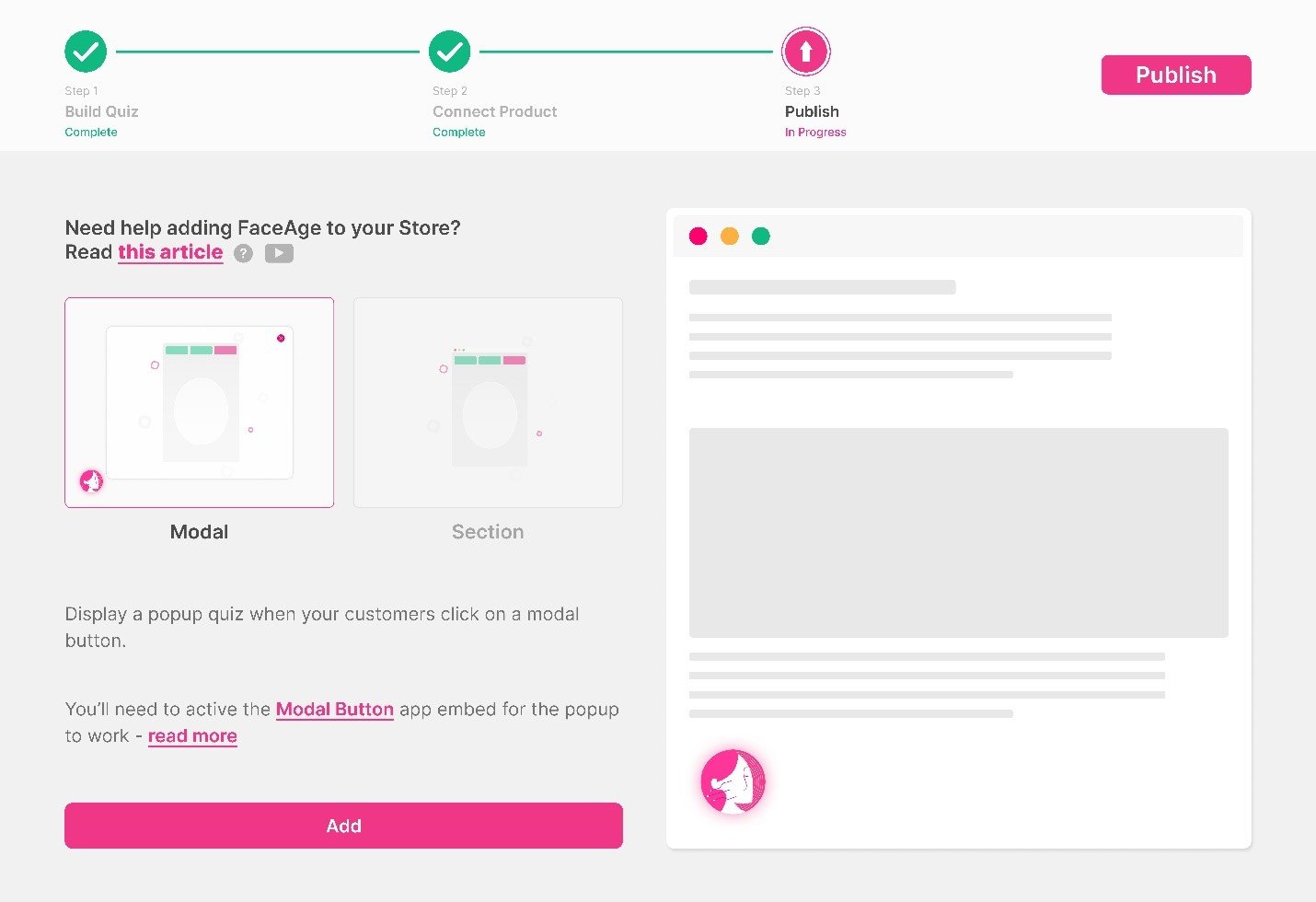
Modal mode
A Face Age badge is added to all your pages. You can customize the badge in the Template tab of Customization.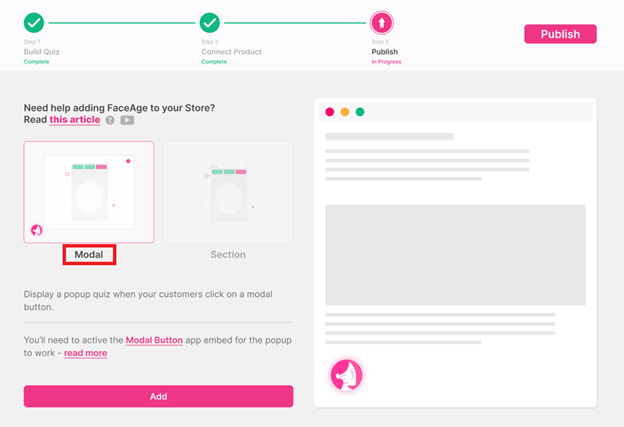
- Go to Online Store → Themes → Customize.
- Open App embeds.
- Activate Skin Analyzer Popup.
Section mode
The Face Age analyzer is added as a section on your homepage.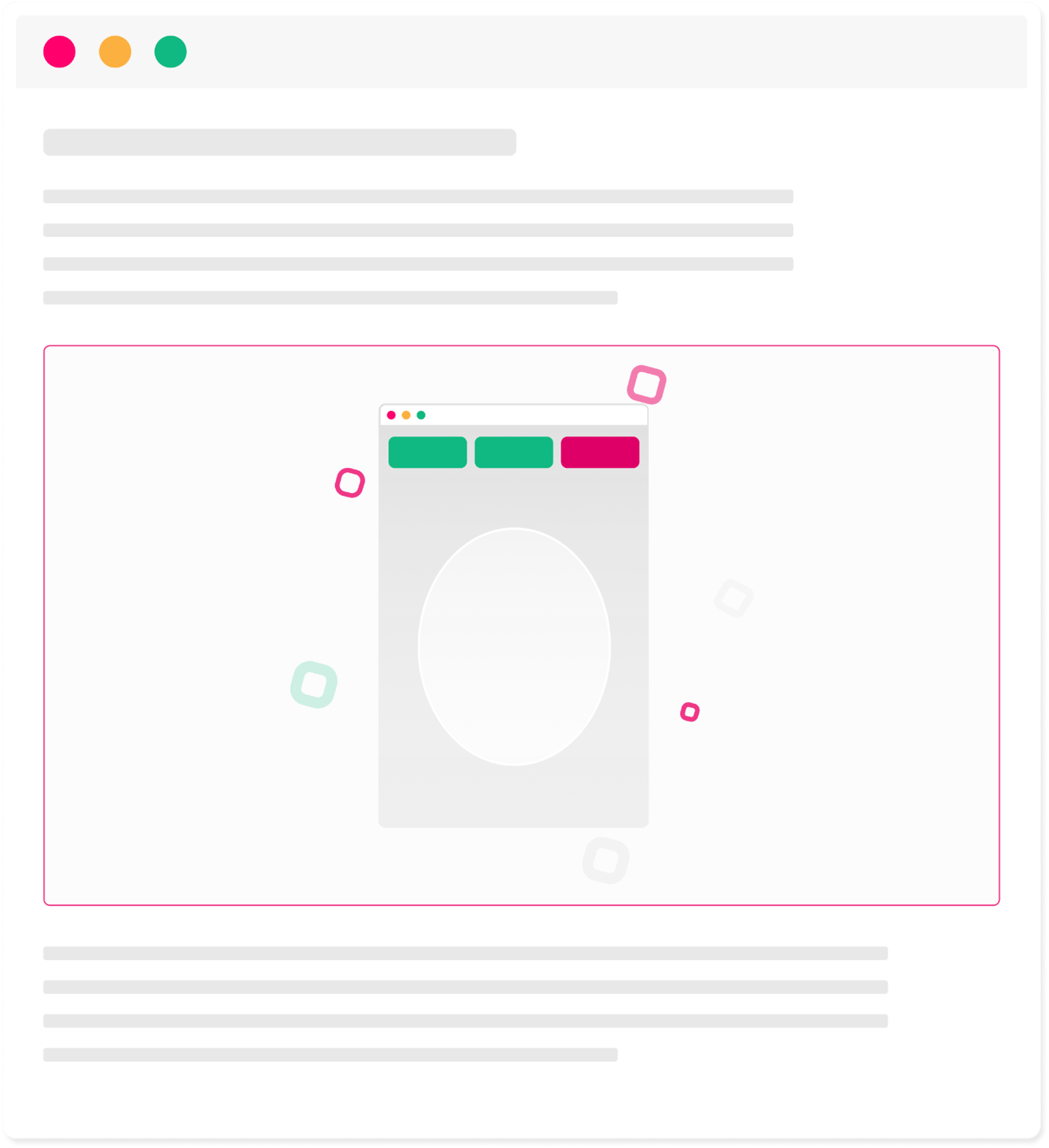
- Go to Online Store → Themes → Customize.
- Open Sections (selected by default).
- In the template, select Add section.
- Select Skin Analyzer.
- Configure it like any other section, if needed.
Storefront extensions
Once Face Age is live as a modal or section, you can add optional theme blocks for a more personal storefront. They don’t replace Initialize & Publish — they sit on top of it.
See Storefront extensions for placement steps.
Face Age not showing on your store?
Troubleshoot display issues and JavaScript errors.